Your rig assistant has never answered from vibes. It answers from documents, and it has been working from the documents your builder set up, plus your spec sheet, since the first question you ever asked it. When you asked why your heater was short cycling at 9,000 feet, that paperwork was already in play.
What you could not do, for a long time, was see any of it, or reach past it. The Glovebox is where that changes. Open Rig from the shortcuts bar in chat, and the Glovebox tile sits full width under your specs. Everything else about the hub is covered in our walkthrough of the Rig Hub. This post is about what happens when you tap the plus button in the corner of the Glovebox, because that's where the real change landed.
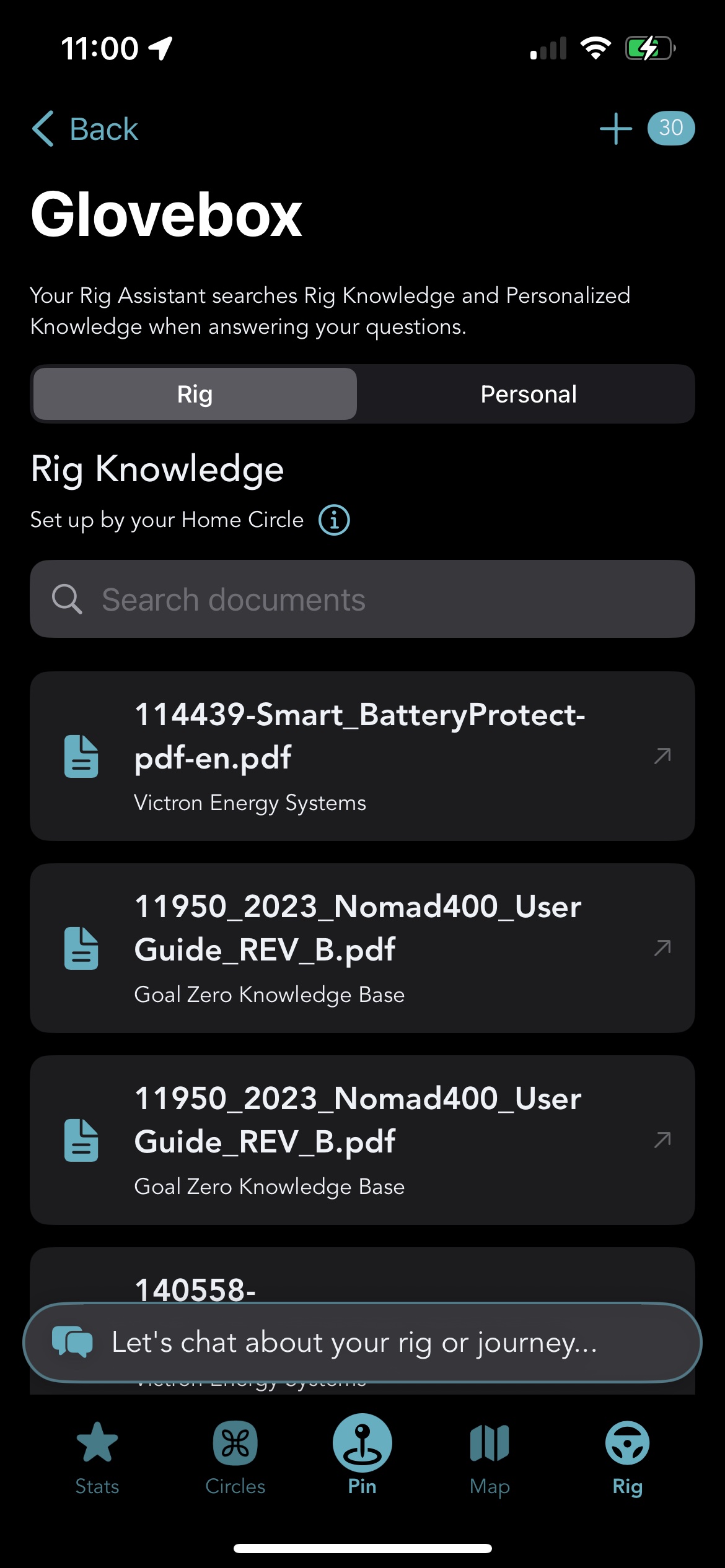
Two tabs now: Rig Knowledge and Personalized Knowledge. The plus button in the corner is new.
Open the Glovebox and a banner tells you the arrangement in one line: "Your Rig Assistant searches Rig Knowledge and Personalized Knowledge when answering your questions." Under it, two tabs: Rig Knowledge and Personalized Knowledge.
Rig Knowledge
Set up by your Home Circle. This is the tier you did not build. Your Home Circle, usually the shop that converted your van, picks what belongs here. The tooltip is honest about it: "Carefully selected and set up by your Home Circle. Your assistant may also use additional resources as it's been instructed." If you want the wider picture of what a Home Circle actually is, our post on Circles covers it. These documents have been feeding your assistant since day one. Because this tier belongs to your builder, you cannot remove anything from it. That is the point. Nobody accidentally deletes the documentation for the electrical system in their own van.
Personalized Knowledge
Information you've added in. This is your tier. Your assistant searches it exactly the same way it searches Rig Knowledge, and you are the only one who decides what stays. A swipe on any row here gives you Remove, and it only works here. Take something out and a small toast confirms it: "Removed. You can find it again in search." Nothing is gone for good, it just goes back to being something you'd have to look up again.
Search Every Manual We Have, Not Just Yours
Here's the part that's actually new. Tap the plus button in the Glovebox toolbar and you get a sheet titled Add Documents, with a search field that says exactly what it does: "Search every manual we have." Type a brand or a part and it searches the whole public library, every manufacturer catalog we carry, not just the documents already sitting on your build.
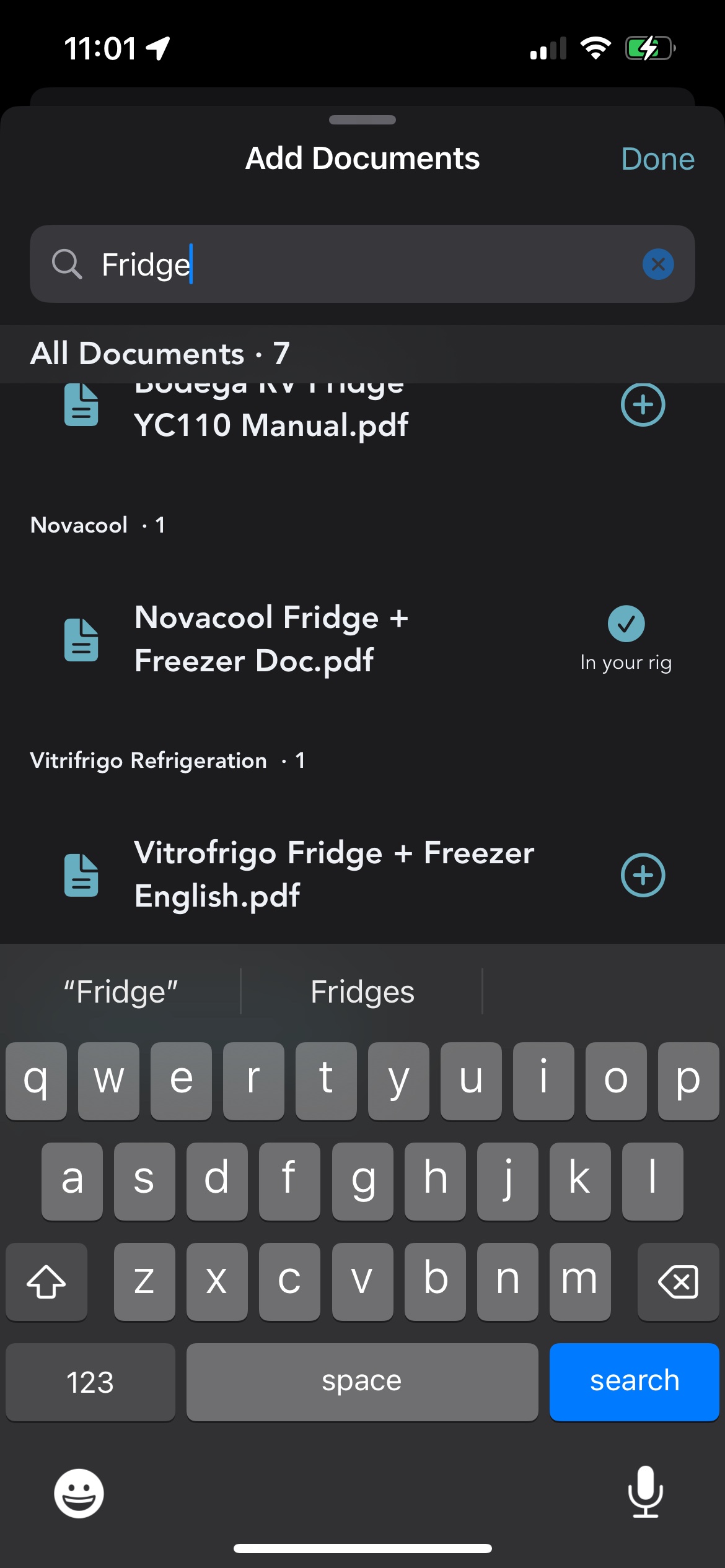
Search "fridge" and get results from every brand we carry, not just the one already in your rig.
Results come back grouped by knowledge base, brand by brand, each group carrying a count like Novacool · 1 or Vitrifrigo Refrigeration · 1. Tap the plus on any row and it lands in Personalized Knowledge immediately. No confirm screen, no batch selection. The copy is direct about what just happened too: Added — your assistant can use this now.
This used to be impossible. Before this, Glovebox search only filtered the documents already loaded onto your screen. If the manual you needed had never been added to your rig specifically, no amount of typing in the search box would ever surface it. Now the whole library is reachable.
Before you type anything, the sheet isn't empty. It opens on a set of suggestions grouped by catalog, matched against your spec sheet, the same idea as the old Recommendations tab, just reached a different way now. Not interested in one? Swipe for a thumbs-down and it drops out of the list. Nothing you dismiss gets added, and nothing you don't touch gets added either. A suggestion still only becomes part of the conversation the moment you tap plus on it.
Can't find what you're after at all? A Request This button sits under a no-results state, and it actually goes somewhere, into a queue our team looks at.
Heads up: this is iOS only right now. Android still has the old per-tab filter, which only searches documents already loaded onto your rig. Full-library search is built and shipping to Android next.
Tapping any row in either tab, or in search results, opens the document itself in a Safari sheet without leaving the app, so you can read the actual page whenever you'd rather look it up yourself than ask.
Start With Your Specs, or There's Nothing to Suggest
The suggestions you see before typing anything come from the same place they always did: your spec sheet. Open the sheet with a blank spec sheet and you'll see "Fill out your Specs to get recommendations," with a Go to Specs button that takes you straight there.
That is not the feature failing. Matching documents to a rig requires knowing something about the rig. Fill in Power System and the suggestions that come back are about your inverter and your batteries, not somebody else's. Fill in Climate Control and it's about your heater and your fan. Victron and Lithionics don't publish one document for every van. They publish documents for specific gear, and our own guides to van electrical troubleshooting, van heating systems, and cooling and fans keep running into exactly that difference.
Not sure what your own numbers even are? Our guide to knowing your build walks through what to write down and where to find it on the rig itself.
The Specs tile also shows where you stand at a glance, in the form N of 8 sections filled, plus a badge telling you whether you're still on the Template or running your own numbers. Every time you save your spec sheet, Grover re-runs the match, so anything new turns up the next time you open the search sheet without you asking for it. But the plus button changes the ceiling on all of it: even a rig with a perfectly filled spec sheet can now reach documents that were never matched to anyone, because you can just go find them yourself.
The Glovebox is still quiet by design. Most days you'll just ask a question and get an answer built on paperwork you never had to think about. The difference now is that when the paperwork you need isn't already there, you have a real way to go get it, instead of waiting for Grover to guess right.
Don't have this yet? Turn on automatic updates in the App Store so Grover updates itself as soon as new features go out. This one is live on iOS now, with Android on the way.
Ready to Find the Right Manual?
Fill in your specs, open the Glovebox, and search the whole library for the documentation that actually matches your build.