Ask a vanlife group whether you can run a rooftop air conditioner off your battery bank overnight and you will get forty answers. Every one of them is right about somebody's van. Almost none of them are right about yours.
That gap is the reason Rig Hub exists. Generic vanlife advice is cheap and everywhere. Advice that knows your clearance, your drivetrain, your battery capacity, and your fresh water tank is worth a lot more.
Here is the part worth saying out loud. Your rig assistant has been reading all of that from the beginning. Your spec sheet and the documents your builder set up have fed every answer since day one. You just could not see any of it. Before Rig Hub, the only way to know what Grover was working from was to catch a source appear in a chat reply.
Rig Hub is the window. It is one door to everything about your specific build: your spec sheet, which rig assistant you are talking to, and the documents that assistant reads when it answers you. You could always ask. Now you can look.
Two of those three are new visibility, not new machinery. The one genuinely new capability sits at the bottom of the Glovebox: Grover suggests documents that match your build, and accepting one adds it to what your assistant reads.
Getting There: Three Tiles, Two Doors
There are two ways in, and both open Rig Hub as a full screen over whatever you were doing. The first is the chat shortcuts bar, where a button labelled Rig sits alongside Stats, Circles, Map, and Pins. The second is the rig card on your Stats screen, the one showing your rig avatar, your nickname, and your year, make, and model. Tap either one and you are in.
The screen is titled Rig, with a Close button when you are done. Your rig avatar sits at the top as an editable header. Below it are exactly three tiles: Specs and Switch Rig side by side, and Glovebox running full width underneath.
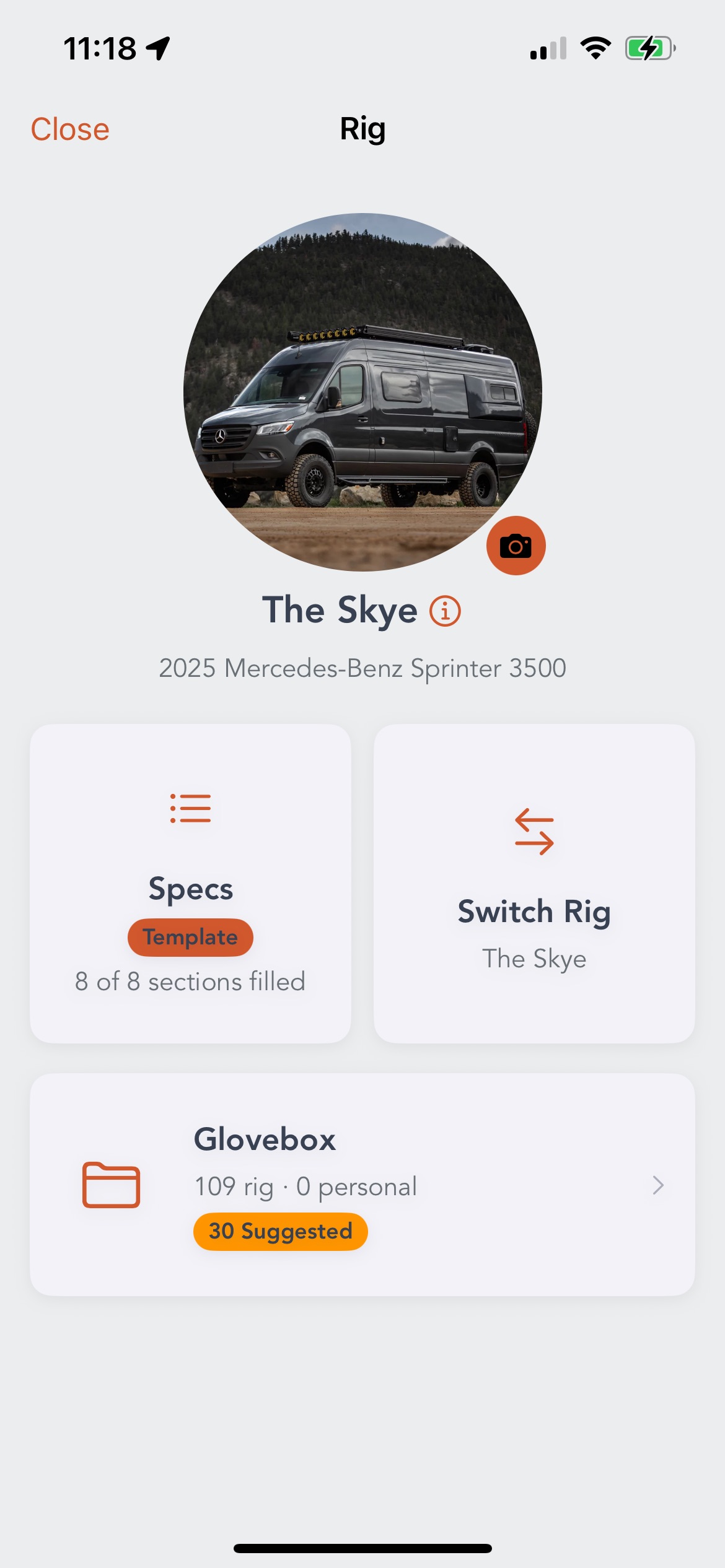
One screen, three tiles. Note the Specs tile: a full count, but still on the template.
That is the whole map. Three tiles, no submenus buried three taps deep, no separate settings screen holding half of your rig information. Every trip into Rig Hub starts at the same three tiles, so you always know where you are.
Why one door matters. Your specs, your assistant, and your documents are the same subject: your build. They were already working together behind the scenes. Putting all three behind one button means you can check a number, glance at a manual, and get back to driving.
Specs: The Sheet That Changes Every Answer
The Specs tile is the one that matters most, and it tells you two things before you even tap it.
The first is a count, written as N of 8 sections filled. The second is a status badge reading either Template or Customized. Together they answer the only question worth asking about a spec sheet: how much of this is really about my van? Grover has been reading that sheet all along. The new part is that you can see how much of it you have actually filled in.
The Eight Sections
Tap through and you land on your full spec sheet, organized into eight sections:
- Vehicle Details
- Dimensions & Capacity
- Power System
- Water & Plumbing
- Climate Control
- Kitchen & Living
- Exterior & Recovery
- Custom Equipment
Those eight cover the questions that actually decide where you can go and how long you can stay. Height and length decide which forest roads and parking garages are options. Drivetrain decides whether a washed-out approach is a shrug or a tow bill. Battery capacity and solar decide how many cloudy days you can sit still. Fresh and grey water decide how long between town stops. Heat and cooling decide which seasons and elevations you can actually enjoy.
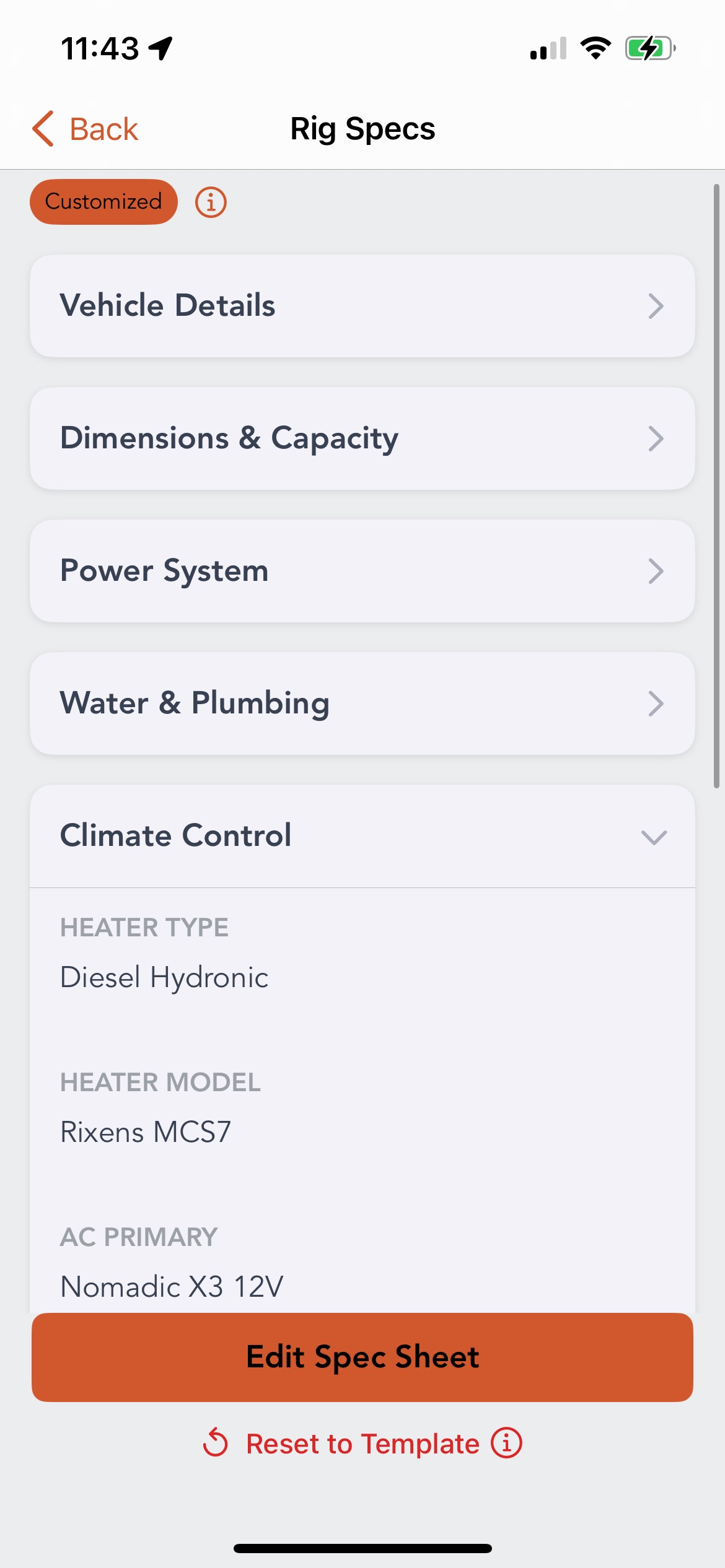
Climate Control, opened up. This is what a customized sheet looks like once the guesses are gone.
How the Count Works
The counting rule is looser than people expect, and that is on purpose. A section counts as filled the moment any single field inside it has something in it. The denominator is sections, not fields. One entry flips a whole section from empty to filled.
So you do not have to sit down with a tape measure and a manual and knock out all eight in one session. Put in your battery bank size while you are thinking about it. Add your fresh water capacity next time you fill up. The count climbs, and every entry sharpens the answers you get in chat before the sheet is anywhere near complete.
Partial beats perfect. A spec sheet with your height, your drivetrain, and your battery capacity in it is already doing real work, and it has been doing that work quietly the whole time. Anything you add today is in play the next time you ask a question. Holding out for a flawless eight of eight just leaves your assistant working from less than it could.
Template Versus Customized
Every rig in Grover starts from a template, which is why that badge exists. The tooltip on About Template says it plainly: "Template shows the default specs for your rig model. Customize them below to personalize your Specs sheet and unlock a custom rig avatar."
The template is a reasonable starting guess for your rig model, so the tile may show a count above zero before you have typed a single thing. That is the template talking, not you. It gets you useful answers on day one, and it is still a guess.
The badge flips to Customized once you save your own values. That is the moment the sheet stops describing a rig like yours and starts describing yours. The one with the aftermarket lithium bank, the roof deck you added, the 2 inches of lift that changed your clearance number, the water tank you swapped for something bigger.
If you ever want to start over, you can reset the sheet back to the template. Grover asks you to confirm first, and it is honest about the stakes: your custom specs go away permanently.
The Custom Rig Avatar
There is a small reward tied to all of this. Once you save custom specs, the avatar at the top of Rig Hub opens up and you can put a real photo of your rig there. Pick an image, crop it, done. Try it before you have saved custom specs and Grover sends you to fill in your specs first.
It is a nudge, and it works, because a photo of your actual van sitting on top of numbers that describe your actual van feels correct in a way a stock illustration never does.
What Grover Has Been Doing With It
Our in-app tutorial spotlights this screen with a line that sums up the whole point: "Your rig, your filter. Add your clearance, drivetrain, power, and water setup." Grover uses your build to surface routes and campsites you can actually run, not the ones that merely photograph well.
That filter has been running quietly through everything since the day you picked your rig. Ask about a boondocking spot and the answer accounts for your clearance. Ask how long you can park somewhere and the answer accounts for your water and your battery. Ask about a heater upgrade and the answer accounts for what you already have. If you want the non-app version of this thinking, we wrote up the numbers every van owner should know by heart, which is worth reading whether or not you use Grover.
It is also the difference we argued for in vanlife app features that actually matter. Rig-specific filtering is the feature. The spec sheet is how it gets fed.
Switch Rig: Choosing Who You Are Talking To
The second tile is Switch Rig, and its subtitle shows the rig you are on right now. Tap it and you get a scrollable list of the rigs available to you, with a checkmark on the one you are currently using. Pick a different one and Grover drops you back at the hub.
Here is the part worth being clear about, because the name invites a wrong guess. This is not a garage. Grover holds one rig at a time, and picking a different one replaces the one you have. On iOS the screen is blunt enough to title itself Replace Rig once you already have one.
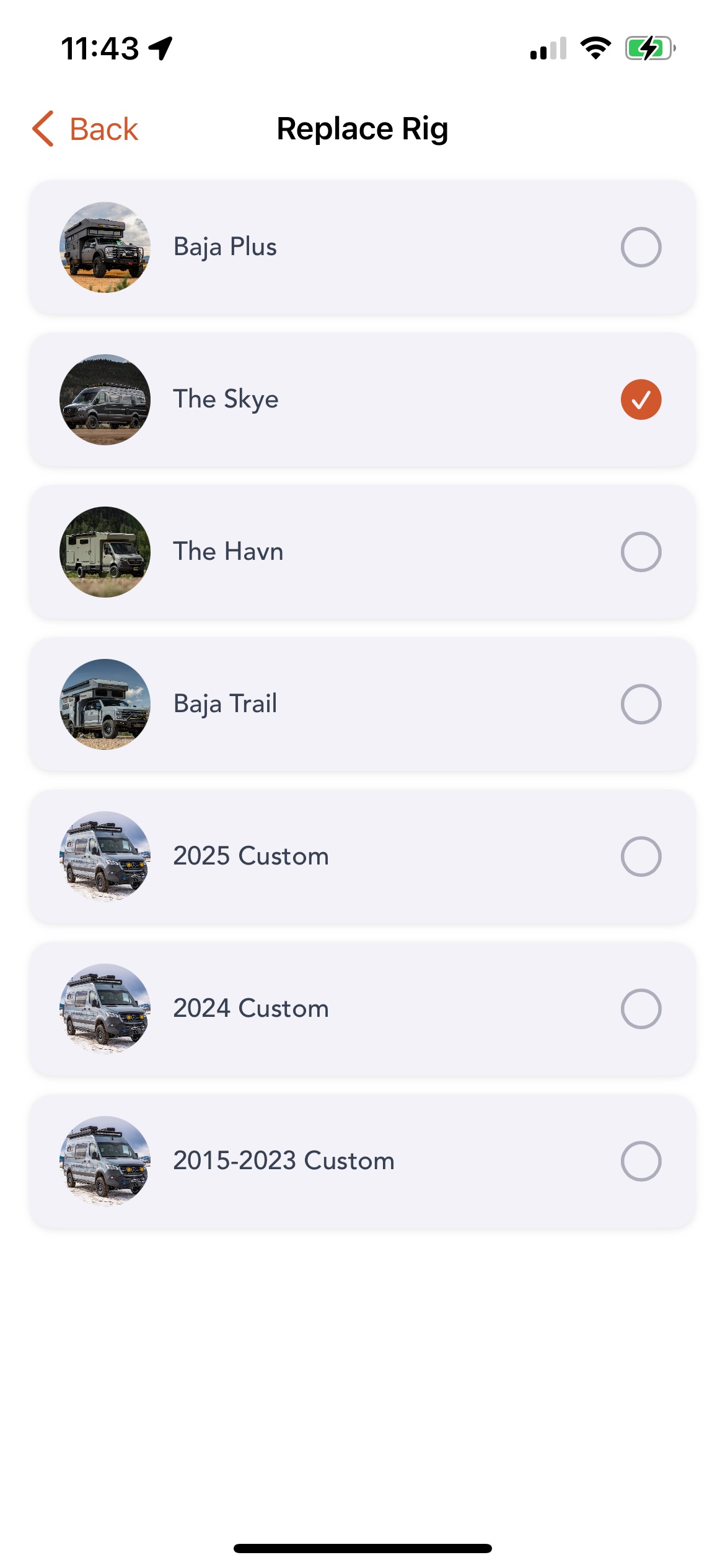
The title says Replace Rig, and it means it. One rig at a time.
What you are really choosing is your rig assistant. Different rigs come with different assistants, and the assistant shapes what the answers sound like and which documents sit behind them. A builder's assistant knows that builder's systems. Switching rigs switches that whole context.
Most people set this once and never touch it again. It matters when you buy a different rig, or when a builder brings your specific build into Grover and you want to move onto it. The FAQ in our Getting Started guide covers picking your rig and assistant in the first place, including what changes when you switch later.
The Glovebox: What Your Assistant Reads
The third tile runs the full width of the hub, and it is the one most people are surprised by. The Glovebox holds the documents your rig assistant reads when it answers you. Real manuals, real spec sheets, real installation guides for the systems in your van.
Surprised is the right word, because those documents were already there and already in use. Your builder set them up and your assistant has been reading them ever since. The Glovebox is the first time you get to see the actual list.
The tile carries a document count, so one glance tells you whether there is concrete documentation behind your answers or your assistant is working from general knowledge alone.
Inside, a banner states the arrangement directly: "Your Rig Assistant searches Rig Knowledge and Personalized Knowledge when answering your questions." That is the whole idea, and it is written in the present tense for a reason. This is not a filing cabinet you maintain for fun. It is the reading list that has been behind your answers this whole time.
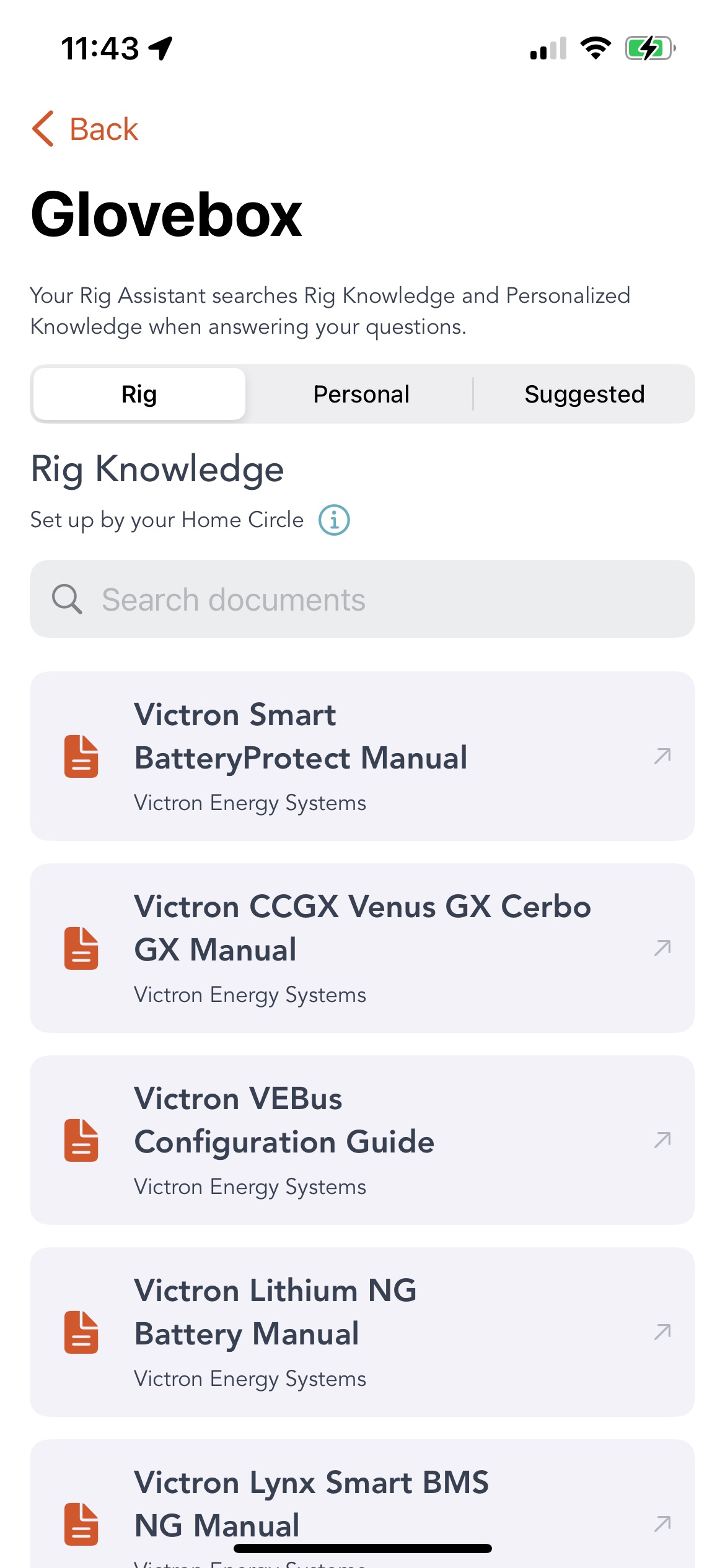
The actual reading list. Every one of these was already in play before you could see it.
Three Tiers
The Glovebox splits into three tiers, and you switch between them at the top of the screen.
Rig Knowledge is subtitled "Set up by your Home Circle." These are the documents chosen for your rig by the people who know it, and they have been answering your questions since the day you picked that rig. Nothing about that is new. Seeing them, and being able to open them yourself, is. The tooltip explains the reach: "Carefully selected and set up by your Home Circle. Your assistant may also use additional resources as it's been instructed." You cannot remove these, which is the point. They are the baseline your assistant always has. If Home Circles are new to you, our post on Circles covers how they work.
Personalized Knowledge is subtitled "Information you've added in," and its tooltip is just as short: "These are pieces of information that you've added in." This is your layer. It is also the only tier where you can swipe a row away to delete it, so pruning is always available.
Recommendations is subtitled "Not used until you add it," and it is where Grover suggests documents based on your spec sheet. This tier is the one genuinely new capability in Rig Hub. The other two show you what was already running. This one hands you a decision nobody had before. The tooltip is careful about it: "Based on your spec sheet and customized to meet your needs. Your assistant doesn't use them unless you add them." Nothing here influences your answers until you say so. Pick the ones you want, add them, and they land in Personalized Knowledge. We gave that tier its own full walkthrough, including how the matching works and what happens once you add a document.
How Documents Get In There
Two ways, and only two. Your Home Circle, which for most people means the builder who put the rig together, sets up Rig Knowledge. That path is not new at all. It has been running since before Rig Hub existed. The second path is: Grover matches your spec sheet against the documents available for your rig, suggests the ones that line up, and you add the ones you want.
We like that division. Your builder hands you the right paperwork for the thing they built, and your spec sheet fills in the rest. Nobody sits on the shoulder of a dirt road trying to hunt down a PDF. Note what is doing the work in that second half, though: Grover is reading your spec sheet, not the insides of every manual. Which is one more reason those eight sections earn their keep. Our van electrical troubleshooting guide makes the case for real manufacturer documentation at length. The Glovebox is that argument built into the app.
Finding and Reading
A search field covers your Rig and Personalized documents. Suggestions stay out of search results on purpose, since they are not part of your knowledge yet. Tap any row and the document opens right there inside Grover, so you close it and you are back in the Glovebox.
A document that belongs to both tiers shows up once, filed under Rig Knowledge, so you never scroll past the same manual twice.
One last connection back to your spec sheet. If you have not customized your specs, Recommendations does not pretend to have suggestions. It tells you why: "Fill out your Specs to get recommendations," followed by "We match documents to your rig spec, add some details and we'll suggest what's relevant," and a Go to Specs button that takes you straight there.
It all runs on the spec sheet. Better answers in chat, useful document suggestions, a custom rig avatar. All three start in the same place. Fifteen minutes with your Specs screen pays off across the whole app.
The honest version of this whole feature is short. Grover has been working from your build all along. Rig Hub is the first time you get to see exactly what it is working from, check whether that is right, and add to it.
So open the app, tap Rig, and see what your Specs tile says. If the badge reads Template, you have found the highest-value fifteen minutes available to you in Grover. Fill in what you know off the top of your head, save it, put a real photo of your rig on the avatar, and then go ask your assistant something you have been wondering about. It was already answering for your van. Now you know how much it has to go on.
Ready to See What Grover Knows About Your Build?
Download Grover, tap Rig, and open your spec sheet. It has been shaping your answers all along. Now you can look at it, correct it, and fill in what is missing.