No two builds leave your shop quite the same. One customer wanted the diesel heater instead of gas. Another asked for a bigger inverter. A third is a DIYer who emailed you a list of nine component manuals and asked if Grover could just know about them. Until now, the only way to get documents in front of one specific customer was to add them for every customer on that rig.
Now you can do it for one person. Open the customer in the portal, add the manuals that match their build, and they land in that customer's Glovebox. Their assistant answers from them the next time they ask.
Rig Knowledge Versus One Customer
Your assistant already carries Rig Knowledge, the documents you attach once for every owner of a rig. That is still the right home for anything every one of those owners has: the standard electrical diagram, the water system, your warranty sheet.
A customer's Personal documents are the other half of the Glovebox. They used to be things the customer added themselves. Now your team can add to them too, for the parts that only that customer has.
Rule of thumb. If every owner of the rig needs it, attach it to the assistant. If one customer needs it, add it to that customer.
How It Works
Open Users, pick the customer, and open the Documents tab. You see their Personal documents, with the ones your team added marked "Added by your team," and below that the suggestions Grover has matched to their spec sheet.
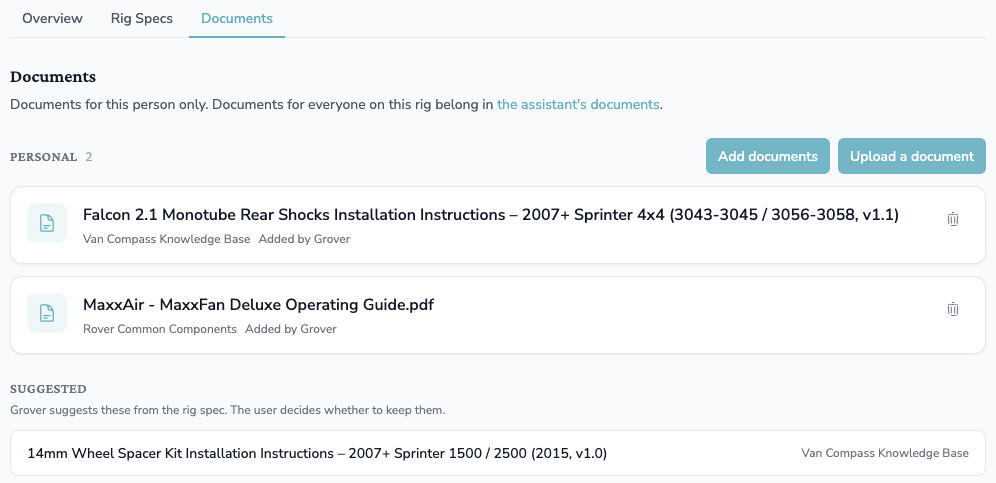
One customer's Documents tab. What your team added sits on top, Grover's suggestions below.
Add a document by searching. The search covers every library you could attach to one of your assistants: the supplier libraries in Grover, your company's own libraries, and any shared with you. Anything the customer's assistant already reaches through Rig Knowledge is marked "In Rig Knowledge," so you don't add it twice by accident.
Remove works the same way. You can take any document out of a customer's Personal set, including one they added themselves, and it only touches Personal. Their Rig Knowledge and suggestions stay as they are.
Uploading a Manual for a Customer
When the manual isn't in any library yet, upload it right from the customer's Documents tab. It goes into your company's Customer uploads library and onto that customer's account in one step, once Grover finishes reading it.
The next customer who needs the same manual is a search away. Customer uploads shows up in the add search for every customer you manage, so you upload a file once and reuse it. If you try to upload the same file again, the portal offers to attach the one you already have.
Who can do it: owners and admins add, upload, and remove. Viewers see everything. The full breakdown is in Who Can Do What in the Grover Portal.
Honest Notes
Manuals, not private records. Documents in Grover can be opened by anyone who has the file's link. Use this for manuals, install sheets, and reference documents. Keep invoices, warranty registrations with personal details, and anything else private out of it.
Customer uploads stays with customers. You can't attach the Customer uploads library to an assistant. That would put every customer's one-off files into every chat on that rig. If a document belongs to the whole rig, add it to the assistant's own documents instead.
From Claude, too. Owners and admins using the Claude connector can list, add, and remove a customer's documents by asking. Uploading a new file still happens in the portal.
Where to Start
Think of the last customer whose build didn't match your standard spec. Open them in the portal, check their Documents tab, and add the two or three manuals that make their build different.
Want a Hand With Your First Few?
Grab a slot and we will go through a customer or two together and load what their builds need. Takes a few minutes.
Schedule a Success Call